How to Create Podcast
 How to Create Podcast
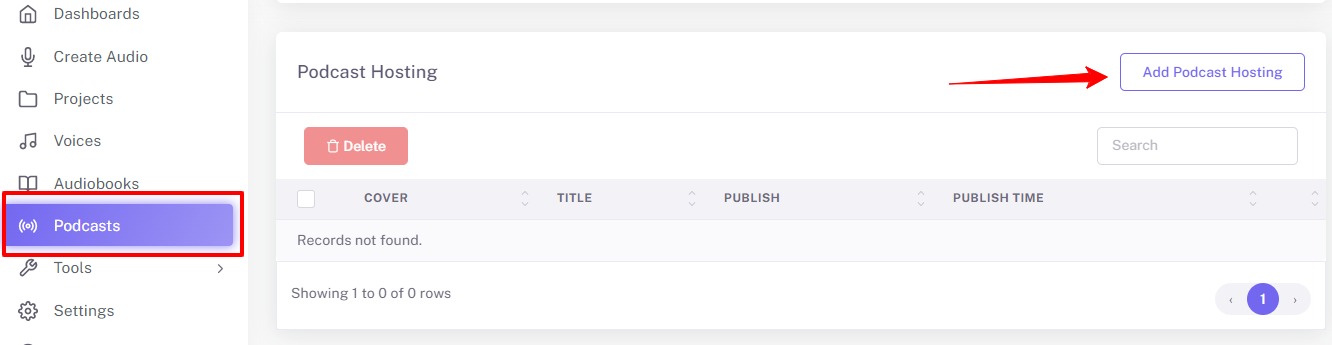
Go to the Podcasts page from the laft side navigation and click the "Add Podcast Hosting" button.
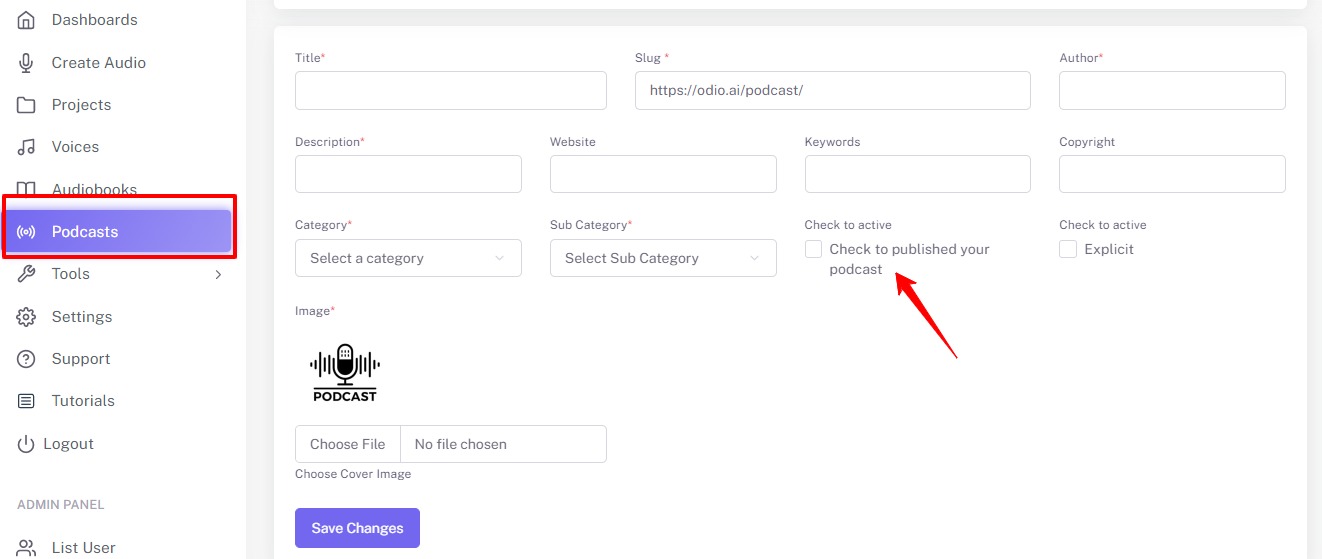
Fill out the information about your Podcast as cover image, title, slug, author, description, etc. Check the "Check to published your podcast" box when your Podcast is ready to be published.
Once you have successfully completed the information, you can see the "+" icon in front of your Podcast entry. Click this to add Episode in your Podcast.
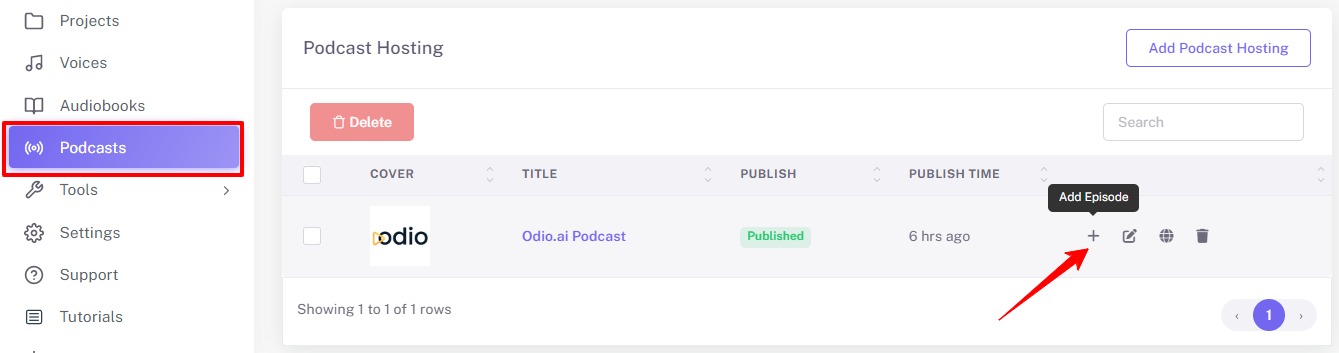
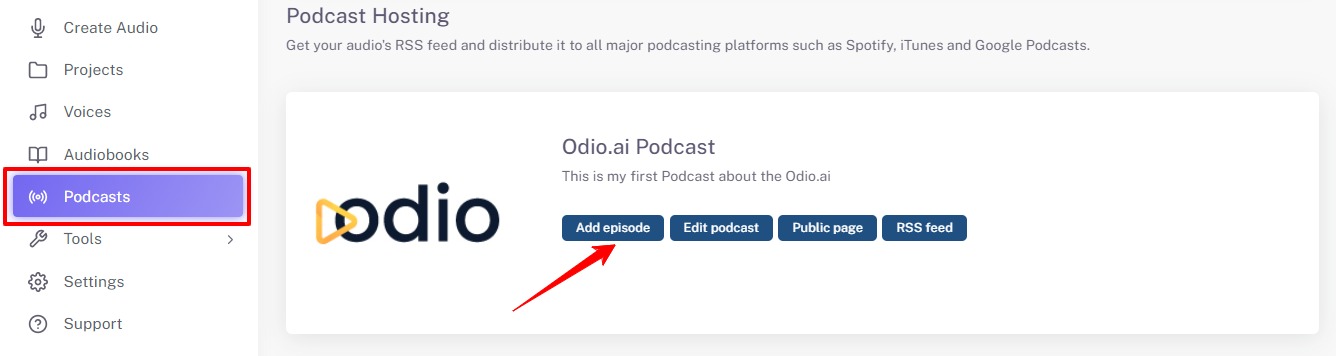
Click on "Add Episode" button to add Podcast episodes. "Edit Podcast" button to change the Podcast details. The "Public Page" button will work once the Podcast is published. RSS Feed used to get your audio's RSS feed and distribute it to all major podcasting platforms such as Spotify, iTunes and Google Podcasts.
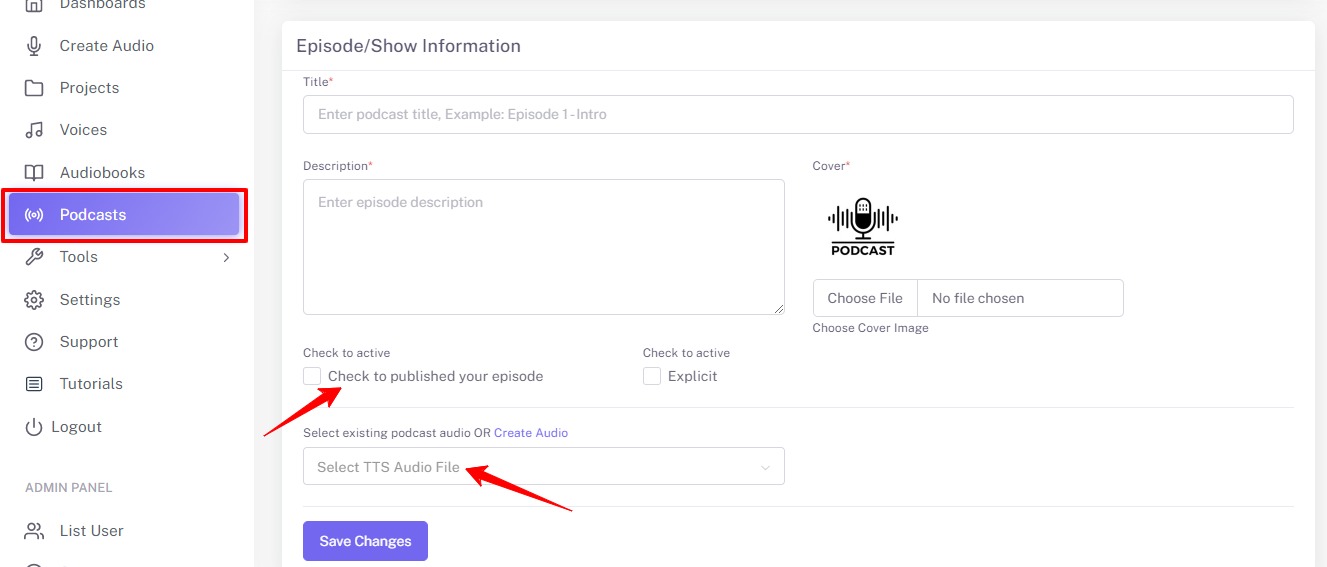
Fill in the episode details and choose the audio file for that episode. Every episode should be added one by one. It is not possible to upload audio files from your local system, you can just choose the audio file created on Odio.ai platfrom.